
Microsoft Outlook
Microsoft CorporationProductivity
4.3351.02K Reviews
- Version
- 5.2644.1
- Installs
- 1.00B
- Age Rating
- Everyone
Screenshots
Our Review of Microsoft Outlook
 Analysis by Appyee
I tend to judge an email app by what happens on an ordinary busy day, not by how many options it can advertise. Microsoft Outlook makes sense when work messages, personal mail and appointments all compete for attention, and I want one place to check them without constantly changing apps. It is a free productivity app from Microsoft Corporation, rated for Everyone, and its scale is striking: it has more than a billion installs and a 4.4 average from around ten million ratings. Those numbers suggest broad appeal, but they do not mean it will suit every inbox or every way of working.
A One-Stop Shop for Your Emails and Calendars
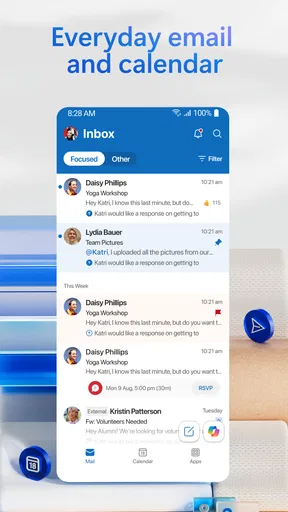
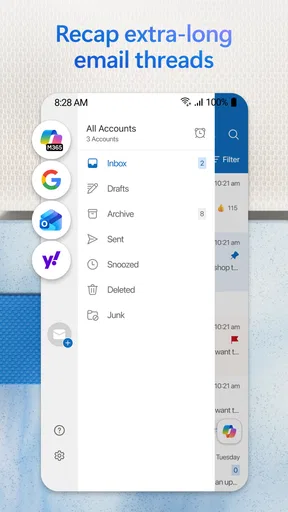
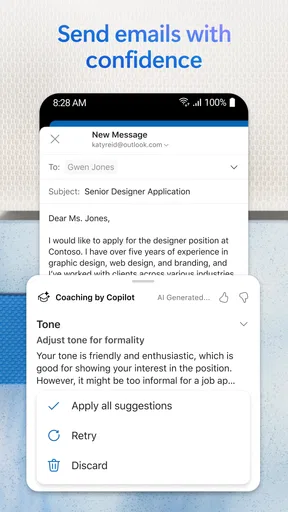
When I first installed Microsoft Outlook on my phone, I was curious to see if it lived up to the hype. Spoiler alert: it does! This app combines email and calendar functionalities seamlessly, making it a powerful tool for anyone who needs to keep their life organized. I can manage my work, personal, and any other email accounts I have, all from one app. No more switching back and forth, which is a huge time saver.
When One Inbox Is Actually Useful
The strongest reason to use Outlook is not simply having mail and a calendar on the same screen; it is being able to give different parts of the day a shared home. A practical example: I can check a work message while waiting for an appointment, then look at my calendar before replying with a time that is genuinely free. Later, personal plans are still accessible without opening another mail app. That kind of small handoff is where consolidation saves effort.
It is especially appealing if you already rely on Microsoft services or move between a phone and a computer. Outlook is currently at version 5.2604.1, and it supports Android 10 and later. The free download makes it easy to try, while in-app purchases range from $1.99 to $20.00 per item. I would check what a purchase covers before paying; the basic reason to install it is the everyday email-and-calendar workflow, not an assumption that every extra is necessary.
Intuitive Interface
Let’s talk about the interface. It’s sleek, clean, and intuitive. You don’t need to be a tech genius to navigate through it. Everything is laid out in a way that makes sense, and the learning curve is pretty much non-existent. The app’s design focuses on simplicity and ease of use. Whether you’re checking emails or setting up a meeting, everything is just a tap away.
Still, an interface that feels straightforward at first can become busy once several accounts, calendars and notification choices are involved. I recommend adding accounts deliberately rather than connecting every address immediately. Start with the inboxes you actually check each day, then see whether the combined view helps or makes it harder to tell which account a message belongs to. Keeping a clear sense of the sender account matters when replying from a work address versus a personal one.
Seamless Syncing
One of the standout features of Outlook is how effortlessly it syncs across devices. I can start an email on my phone, then finish it on my laptop without missing a beat. The same goes for calendar events. It’s like having a personal assistant that keeps everything updated for you. This is especially handy for those of us who are constantly on the go.
That convenience is most valuable when a message or event is part of a larger routine: glance at the phone while commuting, then handle a longer reply at a desk. I would still treat the calendar as something to check before making commitments, especially if I use separate calendars for different responsibilities. A consolidated schedule is helpful, but only if I understand which events are visible and which account they belong to.
Focused Inbox
The Focused Inbox feature is like having a personal email sorter. It intelligently separates important emails from the rest, ensuring that you don’t miss anything crucial. This feature was a game-changer for me. I no longer have to sift through promotional emails to find something important. It’s like having a clutter-free email experience.
I find it useful as a first pass, not as a perfect judge of importance. An unfamiliar sender or a message that matters only once may not land where I expect, so I would keep an eye on the other inbox view while getting used to the sorting. For anything time-sensitive, searching or checking both views is safer than assuming the sorter caught every important message. That small habit keeps a helpful filter from becoming a blind spot.
Customizable Notifications
I’m a big fan of the customizable notifications. You can set different alerts for different accounts, so you’re not bombarded with notifications all day. This is especially useful if you’re managing multiple email accounts. You get to decide which emails are important enough to interrupt your day.
My practical approach is to make alerts reflect urgency rather than account count. If every mailbox announces every new message, the benefit of a combined app disappears into interruptions. I would keep notifications for the account or messages that need a quick response and check lower-priority mail at chosen moments. This is a simple way to use Outlook without letting an always-available inbox dictate the pace of the day.
Calendar Integration
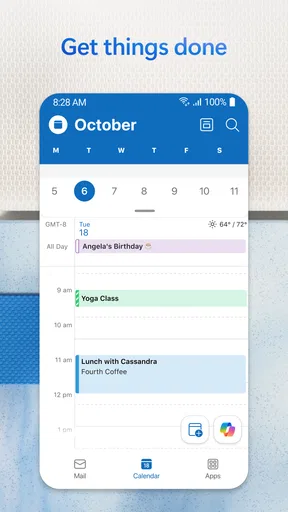
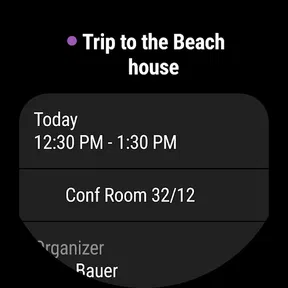
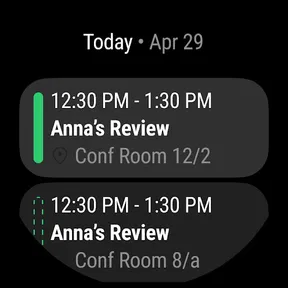
The calendar integration is another feature worth highlighting. You can view and manage your schedule right from the app. It’s incredibly easy to create events, set reminders, and even share your calendar with others. I’ve found this feature particularly useful for coordinating meetings and keeping track of deadlines.
For a day with back-to-back obligations, having mail and appointments close together can make planning replies easier: I can look at the schedule before agreeing to a meeting instead of relying on memory. I would also make event titles specific enough to be useful at a glance, particularly when several calendars are shown together. That is a small organizational choice, but it can make a busy view easier to scan on a phone.
Security and Privacy
When it comes to security, Microsoft Outlook doesn’t cut any corners. It offers a variety of security features designed to protect your information. Whether it’s email encryption or spam filtering, you can rest assured that your data is safeguarded. Privacy-conscious users will appreciate the layers of protection this app provides.
For sensitive information, I would avoid treating any email client as a reason to stop checking the account and device choices I make. Connecting an account means bringing its messages and calendar into a mobile workflow, so I would review the account selected before sending, pay attention to sign-in prompts, and use the controls available for that account. This is particularly important on a shared device or when work and personal accounts sit side by side. Trust comes from understanding those choices, not from assuming that a familiar brand removes the need for care.
Integration with Other Apps
Lastly, Outlook’s ability to integrate with other Microsoft Office apps is a huge plus. If you’re already using apps like Word, Excel, or OneNote, you’ll find that Outlook fits perfectly into your digital ecosystem. This integration enhances productivity and makes it easier to manage tasks across different platforms.
That advantage is clearest for someone who already handles documents and communication through Microsoft tools. If your day is centered on another ecosystem, the convenience may be less compelling, and the mail app you already use might provide a more natural fit. I would choose based on where my accounts and routines already live, rather than moving everything just to have one more app on the phone.
Who Will Get the Most from It
Outlook is a good match for people who actively manage more than one inbox, want calendar access close at hand, or switch between mobile and desktop work. It can also help anyone who needs to keep personal appointments visible alongside a professional schedule. The key benefit is reducing the little bits of friction between checking a message, finding a time and responding.
I would be less likely to recommend it to someone who has one simple email account, rarely uses a calendar, and already likes their phone’s built-in mail app. A dedicated calendar may also be a better choice for someone whose main need is detailed scheduling rather than handling correspondence. Likewise, if focused sorting makes you uneasy, or you prefer to see all mail in one unfiltered list, the feature may feel like extra work until you adjust your routine.
Choosing It Over the Usual Alternatives
Compared with a phone’s default email app, Outlook’s appeal is bringing multiple accounts and calendar work into one place, particularly for people already using Microsoft services. A built-in app can be simpler if you only need basic mail and prefer the system’s familiar layout. A separate calendar app can be preferable when scheduling is the priority and email is secondary. I would not switch just because Outlook has more tools; I would switch when having those tools together solves a real daily problem.
There is a trade-off to consolidation: fewer app changes, but more need to stay aware of which account is active and how messages are sorted. Before relying on it for a busy week, I would add the accounts I use most, confirm that the calendar view reflects the commitments I need, and test the notification setup for a day. That short trial reveals whether Outlook reduces clutter or simply relocates it.
Everyday Choices That Make It Work Better
A useful first-week habit is to check both parts of the inbox until I understand what Focused Inbox is separating for me. If something important appears in the less prominent view, I can use that experience to decide how much I want to rely on the sorting. I also avoid turning on every alert at once; a quieter setup is easier to evaluate, and I can add notifications only when I notice a genuine need.
When I am about to send a message connected to work or a personal commitment, I pause to confirm the sender account and the event details. That is not a special trick so much as a sensible safeguard in a combined app. It is particularly useful when replying quickly from a notification or adding a meeting while moving between calendars. The convenience is real, but accuracy still depends on a quick check.
Price, Age Suitability and Long-Term Fit
The app is free to install, so trying its core workflow does not require an upfront purchase. Optional in-app items cost between $1.99 and $20.00 each, which makes it worth checking the purchase screen carefully if an extra is presented. I would begin with the free experience and only pay if a specific option addresses a need I have identified, rather than buying on the assumption that paid extras are required for basic email use.
Its Everyone age rating makes the app broadly suitable from an age-rating standpoint, but account content and family expectations still matter in practice. For a work phone, I would also consider whether combining personal and work mail is appropriate for the way the device is managed. Outlook is most convincing when it supports a routine the user controls, not when every account is added automatically for the sake of convenience.
A Cautious Recommendation
In conclusion, Microsoft Outlook is more than just an email app. It’s a comprehensive tool designed to streamline communication and boost productivity. Whether you’re a busy professional or someone who just wants to keep their personal life organized, Outlook has something for everyone. So, if you haven’t tried it yet, give it a shot. It might just become your new favorite app!
My recommendation is a little more specific: try it if several accounts and a shared view of mail and appointments would save you time, and give yourself a few days to tune the inbox and alerts. Skip it if your current setup is already calm and the added sorting or account management would be needless overhead. With 343,000 reviews alongside its large audience, it is clearly a widely used choice, but the best test is whether it leaves you more in control of your messages and schedule. I would keep it only if that improvement shows up in ordinary use.
Privacy and Permissions
See what permissions an app requests and how it handles your data.
- Identity
- find accounts on the device, add or remove accounts, read your own contact card
- Calendar
- read calendar events plus confidential information, add or modify calendar events and send email to guests without owners' knowledge
- Contacts
- find accounts on the device, read your contacts, modify your contacts
- Location
- approximate location (network-based), precise location (GPS and network-based)
- Photos/Media/Files
- read the contents of your USB storage, modify or delete the contents of your USB storage
- Storage
- read the contents of your USB storage, modify or delete the contents of your USB storage
- Camera
- take pictures and videos
- Microphone
- record audio
- Other
- view network connections, create accounts and set passwords, control flashlight, full network access, change your audio settings, control Near Field Communication, read sync settings, run at startup, reorder running apps, draw over other apps, control vibration, prevent device from sleeping, toggle sync on and off, Google Play license check
How Microsoft Outlook Compares
Full ComparisonChoose Google Calendar for cross-service scheduling, Samsung Calendar for a color-coded planner on Samsung devices, or Outlook for combining email, calendars, and Microsoft tools.
| App | Developer | Rating | Price |
|---|---|---|---|
 Google Calendar | Google LLC | 4.6 | Free |
 Samsung Calendar | Samsung Electronics Co., Ltd. | 4.1 | Free |
 Microsoft OutlookThis App | Microsoft Corporation | 4.3 | Free |
Verdict
Strengths of Microsoft Outlook
- Seamless integration with Microsoft Office suite.
- Customizable email organization features.
- Robust calendar and scheduling tools.
- Supports multiple account management.
- Advanced security and encryption options.
Limitations of Microsoft Outlook
- Occasional sync issues with non-Microsoft services.
- Can be resource-heavy on older devices.
- Limited customization for email themes.
- Some features require Microsoft 365 subscription.
- Complex setup for non-technical users.
Other Releases by Microsoft Corporation
View All
Microsoft OneDrive
Productivity4.6

Microsoft OneNote: Save Notes
Productivity4.6

Link to Windows
Productivity4.0

Microsoft PowerPoint
Productivity4.8
Similar Picks in This Category
View All
Google Calendar
Google LLC4.6

Google Drive
Google LLC4.3

Google Assistant
Google LLC3.9
Microsoft OneDrive
Microsoft Corporation4.6

Samsung Calendar
Samsung Electronics Co., Ltd.4.1
Microsoft OneNote: Save Notes
Microsoft Corporation4.6
You May Also Like
View All
Frequently Asked Questions
What platforms is Microsoft Outlook available on?
Microsoft Outlook is available on both Android and iOS platforms, making it versatile for users across different devices. It can be downloaded from the Google Play Store for Android users and the Apple App Store for iOS users. It's part of the Microsoft Office suite, providing seamless integration with other Microsoft services.
Is Microsoft Outlook free to use?
Yes, Microsoft Outlook offers a free version that includes essential features for managing emails, calendars, contacts, and files. However, for advanced features such as no ads, premium customer support, and larger mailbox storage, a subscription to Microsoft 365 is required. This subscription provides added benefits across all Office applications.
How secure is Microsoft Outlook for managing emails?
Microsoft Outlook is designed with robust security features to protect user data. It includes email encryption, advanced threat protection, and spam filtering to safeguard against phishing and malware. Additionally, it supports two-factor authentication for added security, ensuring that user information remains confidential and secure.
Can I integrate third-party apps with Microsoft Outlook?
Yes, Microsoft Outlook supports integration with various third-party apps and services. This includes popular apps such as Zoom, Slack, and Trello, allowing users to streamline their workflow directly from the Outlook interface. These integrations enhance productivity by enabling users to access multiple tools within one application.
Does Microsoft Outlook support multiple email accounts?
Absolutely, Microsoft Outlook allows users to manage multiple email accounts from different providers within a single app. This feature is particularly beneficial for users who need to access both personal and professional emails seamlessly. Outlook's unified inbox makes it easy to organize and respond to all emails efficiently.
